
Paste the URL. Iminify opens the page in a real browser, collects every image it loads, runs them all through the same compressor as the upload tool, and gives you one zip to put back. No plugin, nothing installed on your site. Free with an account.
Page scans come with a free account: 10 a day, up to 50 images each. Already have one? Sign in.
Before and after
Every image a scan collects goes through this exact pipeline. These 10 samples were run at every level and every format, with nothing tuned by hand. Drag the handle, switch the level and the format, and read the numbers off the results.
Best result so far: 97.2% smaller, Ultra level, AVIF.
All 10 samples at Smart, same format: 3.89 MB in, 1.52 MB out, 61.0% smaller overall.
Rock, water and sky at 1800 by 1200, saved the way a camera saves it: quality 92, full chroma. Fine texture everywhere, which is where lossy encoders spend their bytes.
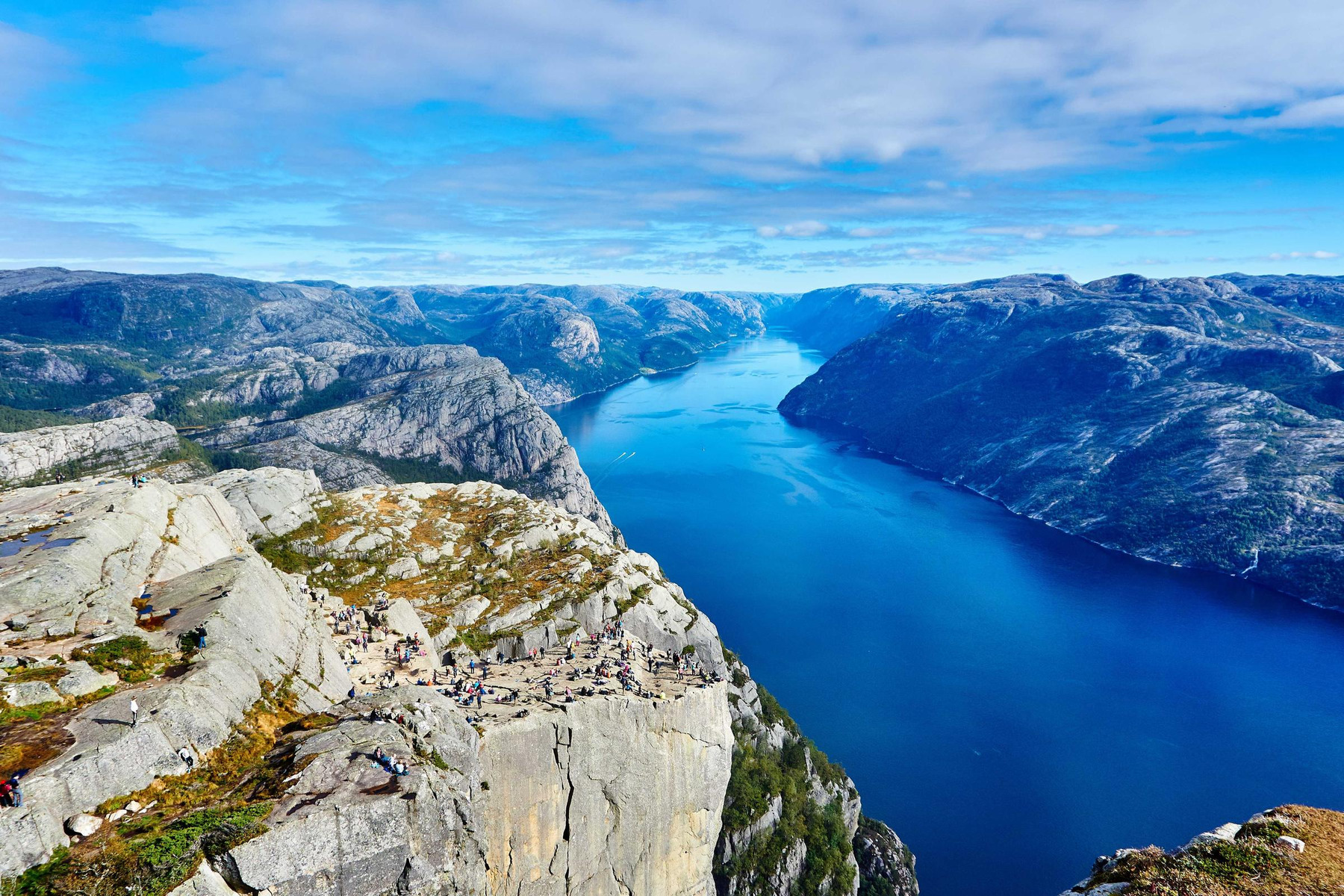
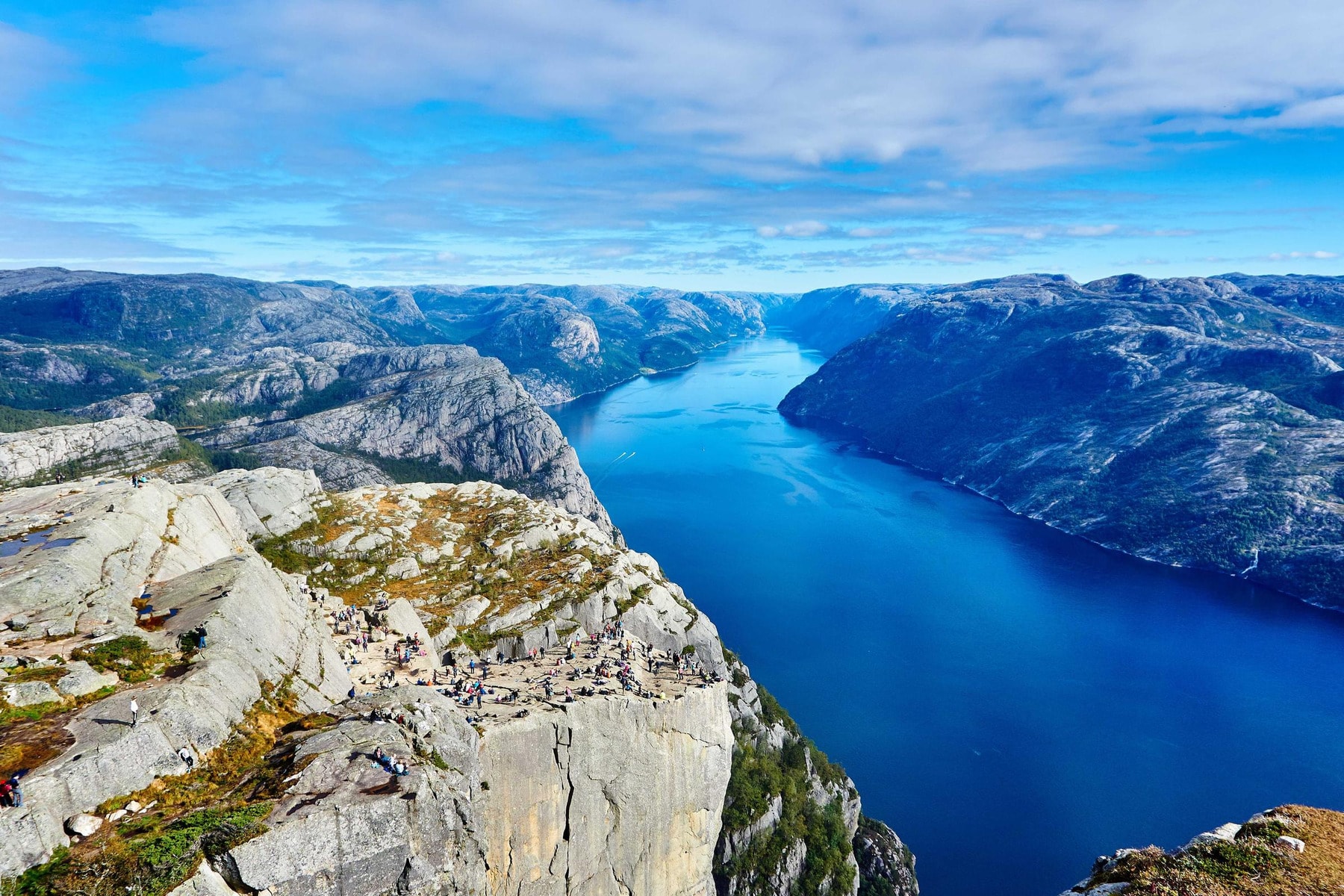
Look the same? Good, that's the job. And no, we didn't put the same picture on both sides: the only difference you're supposed to see is the file size.
Every result for this image
| Same format | WebP | AVIF | |
|---|---|---|---|
| Lossless | |||
| Smart | |||
| Ultra |
What a scan does
A scan is not a crawler and it is not a plugin. It opens one page in a browser the way you would, waits for it to load, scrolls to the bottom, and collects every image along the way. Here is the whole sequence.
Iminify loads the URL in headless Chrome, scripts and all, then scrolls to the end so lazy-loaded pictures get requested too. Nothing is written to your server.
Every img and each size in its srcset, picture sources, video posters, CSS backgrounds, and anything a script added after the page loaded. If the browser fetched it, the scan saw it. Duplicates are removed.
Each image is fetched with your page as the referrer, so hotlink protection lets it through, and identified by its bytes rather than its file extension. Images on other domains are kept too: a CDN, a storage bucket, an embed, all of it.
Level, format, resize and EXIF apply to every image the scan found. Each is queued on its own, so one huge file doesn't hold up the rest.
The results table shows every image with its original size, new size and saving. Tick the ones you want and download a zip with the original file names, ready to upload back.
When to scan
The upload tool is for images you have on disk. The scanner is for the ones you only have on a website.
A client or a previous developer built it, the media folder is a mess, and PageSpeed keeps flagging "Properly size images". Paste the slowest page and see what it weighs.
WordPress, Shopify and most page builders store whatever the editor dropped in, 5 MB phone photos included. A scan pulls the versions the page actually serves.
Total original size, total optimised size and the saving, per page, in a table. Useful for a handover, a proposal or a performance ticket.
Turn on Change Format and every image on the page comes back as WebP or AVIF, or whichever is smaller with Auto, in one download.
Guest, account or Pro
No trial and no card to start. A guest gets 20 images a day and a history that lives in this browser. A free account raises that to 100, opens the page scanner and keeps your history with your account for as long as you have one. Pro takes the daily caps away, doubles the size limit and puts your uploads ahead of the queue, for $6 a month.
| What you get |
Guest
Drop a file, get it back. Nothing to fill in. |
Free account
One form and one email to verify, and the limits move. |
Pro
$6 a month or $48 a year, four months free For the days when 100 images are not enough. |
|---|---|---|---|
| Images a day | 20 | 100 | Unlimited |
| Page scans | Not included | 10 a day, up to 50 images each | Unlimited, up to 150 images each |
| Uploads a minute | 20 | 30 | 60 |
| Queue | The shared queue | The shared queue | A lane of its own, ahead of everyone waiting |
| Your history | In this browser, until the cookies go | Kept with your account for as long as you have one | Kept with your account for as long as you have one |
| Size per image | Up to 32 MB | Up to 32 MB | Up to 64 MB |
| Levels and formats | All of them | All of them | All of them |
| Resize, convert, keep EXIF | Included | Included | Included |
| Batch upload, one zip | Included | Included | Included |
| Watermark | Never | Never | Never |
| Start without an account | Create a free account | Go Pro |
The daily counts reset 24 hours after your first image. Signing up takes a name, an email and a password, and the account stays free. Pro is paid by card, renews on its own and can be cancelled any time from your plan page.
Settings
Everything you can choose for a single upload applies to every image a scan finds. The scan itself has nothing to set up.
Limits
Questions
Scroll up, drop in the URL and press Scan. The results table tells you within a minute how much that page was carrying.